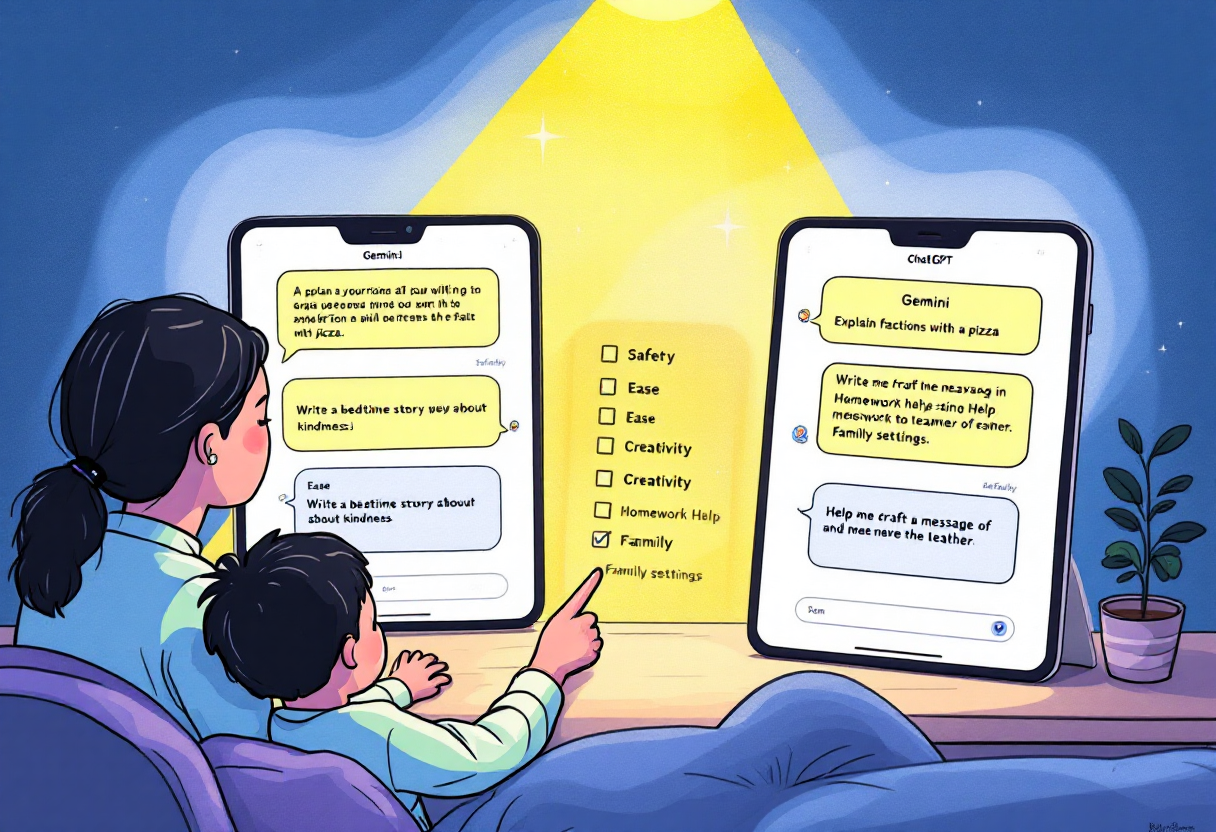
Many parents ask a simple question: if we only choose one main AI for our home and parenting needs, should it be Google’s Gemini or OpenAI’s ChatGPT? This guide gives you a clear, parent-first answer. It focuses on everyday family tasks like homework help, reading practice, trip planning, meal ideas, and keeping AI use safe.
📑 In this guide
Start with our AI Confidence Quiz
AI is already part of your child’s learning. In just a couple of minutes, discover where your family stands and what to do next.
- ✓ Your family’s AI Confidence Score
- ✓ What you’re already doing well
- ✓ Simple, practical next steps
Gemini vs ChatGPT for parents: which is better? (quick answer)
Pick ChatGPT if you want strong writing help, flexible tutoring prompts, and a big library of ready-made “mini-helpers” (called GPTs) you can switch between for different tasks.
Pick Gemini if your household already lives in Google’s world (Gmail, Docs, Drive, Photos, Maps, YouTube, Android) and you want an assistant that can reach across those apps with a single prompt.
For many families, the most practical setup is to use both for free, then choose one paid plan later if you need bigger features or higher limits.

Is Gemini or ChatGPT safer for kids? Age limits and supervision explained
- Children under 13 should only use AI with a parent present. If you allow access, enable all available parental controls and content filters first.
- Teach children never to share personal data, faces, addresses, school names, or live locations with AI.
- Use temporary chats or turn chat history/memory off on shared devices.
- For teens, set clear family rules: what they can ask, time limits, and when to check in with a parent.
- Treat any AI explanation as a “first draft.” Ask your child to spot errors and explain the reasoning back to you.
How parents are using AI at home (real everyday tasks)
Before diving into the table, here’s a quick summary: both Gemini and ChatGPT can support the same family tasks (homework, reading, math, planning, and travel), but each excels in different areas. Gemini fits best for families using many Google tools, while ChatGPT often offers more creative or tutoring-style help. Read this table to see where each shines most clearly.
| Family task | Gemini strengths | ChatGPT strengths | Notes for parents |
|---|---|---|---|
| Homework helper | Pulls info from Google tools you already use; good at creating outlines, vocab lists, and study plans | Excellent at step-by-step explanations and rewriting at a child-friendly level | Sit with your child. Ask the AI to “show steps” and “ask me questions” so it supports learning rather than giving answers. |
| Reading practice | Can draft short passages and reading-comprehension questions; can use YouTube clips for discussion ideas | Can generate leveled passages in your child’s interests; custom GPTs for phonics/decoding | Keep sessions short and upbeat. Ask for 10–15 minute activities and two follow-up questions you can ask your child. |
| Math coach | Good at creating quick practice sets from a photo of a worksheet; can add hints | Strong at worked examples; can check a child’s solution and suggest the next hint | Tell the AI: “Do not give the final answer. Give only the next hint.” |
| Family planning (meals, chores, calendars) | Strong calendar, Maps and shopping list tie-ins; can draft Docs and keep notes in Drive | Very good recipe riffing and weekly plans; GPTs for meal-planning and pantry tracking | Keep recipes simple: ask for 20-minute options, 5 ingredients, and a grocery list. |
| Travel | Can check Google Flights, Hotels, and Maps in one place; builds routes and activity lists | Great at comparing destinations, building day-by-day itineraries with kid-friendly filters | Always add budget, nap times, and transit preferences up front. |
| Photos & memories | Integrates with Google Photos for captions, albums, and story prompts | Can write captions and memory books; needs manual photo selection | Back up photos first; never share sensitive images with any AI. |
Gemini vs ChatGPT: key differences at a glance
| Area | Gemini | ChatGPT | What this means at home |
|---|---|---|---|
| Price tiers | Free; paid “AI plan” adds higher limits and premium models; also bundles into Workspace and Android | Free; paid Plus/Team/Enterprise for higher limits and extras | Try free first. Pay only if you hit limits or need premium voice/vision features. |
| Works with your stuff | Deep links to Gmail, Docs/Drive, Calendar, Maps, YouTube, Photos, Flights/Hotels | File uploads, web browsing, and a large library of custom GPTs; connects to many services via GPTs | If your life runs on Google, Gemini reduces copy-paste. If you want many specialized mini-tools, ChatGPT shines. |
| Custom mini-helpers | “Gems” you can make for repeat tasks | “GPTs” you can browse, make, and switch using @mentions | Families can make a “Homework Coach” or “Meal Planner” once, then reuse. |
| Memory of past chats | Can remember context if enabled; controls in settings | Memory feature with on/off and temporary chats | Turn memory off for shared family devices. Use “temporary chat” for sensitive topics. |
| Voice & live conversations | “Gemini Live” for talk-to-AI, camera, and real-time help on phones | “Voice Mode” for conversational help and live multiturn guidance | Voice is great for practicing languages, reading aloud, or brainstorming dinner while you cook. |
| Images & files | Reads images, PDFs, Docs; can describe photos and generate images | Reads images, PDFs, slides; code execution and data analysis tools on paid plans | For school, ask it to extract key points, then create 3 practice questions. |
| Education tie-ins | Growing Classroom features and templates for teachers | Large set of education-focused GPTs and lesson-planning prompts | For teacher-parents, check school policy and data rules before using with student data. |
| Child access | Parent-managed access with Family Link on supervised accounts; filters applied | Teen features and parental controls are emerging; standard access is generally 13+ with safeguards | Regardless of platform, keep direct supervision for children under 13 and use parental controls for teens. |
What these features actually mean for your child
Extensions and integrations.
Gemini can pull information from Google’s own apps. That means one prompt can check your calendar, suggest a route on Maps, and draft an email in Gmail. ChatGPT uses a huge library of ready-made mini-helpers called GPTs. You can search, favorite, and switch between them to do specific tasks like “IEP meeting note-taker” or “phonics game generator.”
Memory.
Both tools can remember things you allow them to remember, like “Soccer practice is on Thursdays” or “Child reads at about a Grade 3 level.” You can turn this off, review what is remembered, or use a temporary chat that does not save to history. For shared family devices, leave memory off by default.
Voice and live help.
Both offer a natural, back-and-forth voice. This is useful for cooking instructions, travel navigation, or reading practice without typing. Expect some mistakes. Teach your child to pause and fact-check.
Files and photos.
You can point the camera at a math problem, upload a school PDF, or share a picture of what is in your fridge. Ask for step-by-step help or a short summary with 3 follow-up questions for your child.
Which AI should your family use? (simple recommendation guide)
Choose Gemini if:
- Your family already uses Gmail, Drive, Docs, Calendar, Photos, Maps, YouTube, or Android daily.
- You want one prompt to pull from those apps and draft, schedule, or route things for you. You like voice interactions on phones and smart devices.
Choose ChatGPT if:
- You want the strongest general writing help and tutoring-style prompts.
- You want lots of specialized mini-helpers (GPTs) for school subjects and family routines.
- You value switching modes quickly inside one chat using @mentions and custom GPTs.
Either way, keep it simple: start with the free tier for 2–3 weeks, try a few family routines, then decide.
Was this guide helpful?
Let us know whether this article helped you.
Share this guide with other parents
Know a parent who would find this guide helpful? Enter their email address and we'll send them the Parent Conversation Guide directly.